ORB AWS EC2 Quickstart (EC2)#
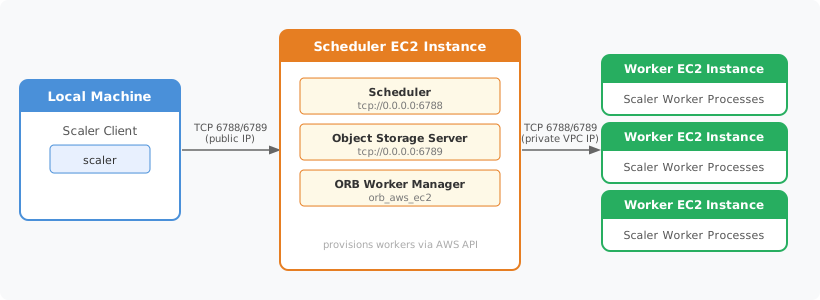
This quickstart deploys the Scaler scheduler, object storage server, and ORB worker manager on a single EC2 instance. Workers connect via the private VPC network; your local machine connects via the public IP.
Step 1 — Install AWS CLI (Local Machine)#
Install AWS CLI v2:
Warning
Do not use pip install awscli for this setup. That installs AWS CLI v1.
Use the official AWS CLI v2 installer instead.
curl "https://awscli.amazonaws.com/awscli-exe-linux-x86_64.zip" -o "awscliv2.zip"
unzip awscliv2.zip
sudo ./aws/install

aws --version
Example output:
aws-cli/2.17.0 Python/3.12.3 Linux/6.1.0 exe/x86_64.ubuntu.22
curl "https://awscli.amazonaws.com/awscli-exe-linux-aarch64.zip" -o "awscliv2.zip"
unzip awscliv2.zip
sudo ./aws/install
curl "https://awscli.amazonaws.com/AWSCLIV2.pkg" -o "AWSCLIV2.pkg"
sudo installer -pkg AWSCLIV2.pkg -target /

aws --version
Requires admin rights. Run in an elevated Command Prompt or PowerShell:
msiexec.exe /i https://awscli.amazonaws.com/AWSCLIV2.msi

aws --version
Then authenticate with AWS CLI:
aws login
Note
If you are not using the root account, your IAM user must have the
SignInLocalDevelopmentAccess managed policy attached to use aws login.
See AWS Permissions for full AWS permission requirements.
Click the page link and proceed in your default browser to sign in, then follow the AWS CLI instructions in the terminal.
Example output:
Opening browser to: https://device.sso.us-east-1.amazonaws.com/?user_code=ABCD-EFGH
Successfully logged into Start URL: https://my-org.awsapps.com/start
Step 2 — Launch an EC2 Instance#
The commands below use the AWS CLI to launch an AL2023 instance and configure the security group so that:
You can SSH in from your local machine.
Your local machine can reach the scheduler (port 6788) and object storage server (port 6789).
ORB-provisioned worker instances in the same VPC can connect back to the scheduler and object storage using private addresses.
Run on your local machine:
# Disable the AWS CLI pager so all commands run without interruption
export AWS_PAGER=""

# Discover the latest Amazon Linux 2023 AMI in your region
AMI_ID=$(aws ec2 describe-images \
  --owners amazon \
  --filters "Name=name,Values=al2023-ami-2023.*-kernel-*-x86_64" \
            "Name=state,Values=available" \
  --query "sort_by(Images, &CreationDate)[-1].ImageId" \
  --output text)

# Create a key pair for SSH access
aws ec2 create-key-pair \
  --key-name scaler-key \
  --query "KeyMaterial" \
  --output text > scaler-key.pem
chmod 400 scaler-key.pem

# Detect your current public IP address
MY_IP=$(curl -s https://checkip.amazonaws.com)

# Create a security group
SG_ID=$(aws ec2 create-security-group \
  --group-name scaler-sg \
  --description "Scaler scheduler security group" \
  --query GroupId --output text)

# Allow SSH, scheduler (6788), and object storage (6789) from your IP
aws ec2 authorize-security-group-ingress --group-id $SG_ID \
  --protocol tcp --port 22 --cidr $MY_IP/32
aws ec2 authorize-security-group-ingress --group-id $SG_ID \
  --protocol tcp --port 6788 --cidr $MY_IP/32
aws ec2 authorize-security-group-ingress --group-id $SG_ID \
  --protocol tcp --port 6789 --cidr $MY_IP/32

# Allow all inbound traffic from EC2 private addresses (172.16.0.0/12)
# so ORB-provisioned workers can connect back to this instance
aws ec2 authorize-security-group-ingress --group-id $SG_ID \
  --protocol all --cidr 172.16.0.0/12

# Launch a c5.xlarge instance (4 vCPUs, 8 GB RAM)
INSTANCE_ID=$(aws ec2 run-instances \
  --image-id $AMI_ID \
  --instance-type c5.xlarge \
  --key-name scaler-key \
  --security-group-ids $SG_ID \
  --tag-specifications "ResourceType=instance,Tags=[{Key=Name,Value=scaler-scheduler}]" \
  --query "Instances[0].InstanceId" \
  --output text)

# Wait for the instance to be running
aws ec2 wait instance-running --instance-ids $INSTANCE_ID

# Retrieve the public and private IP addresses
PUBLIC_IP=$(aws ec2 describe-instances --instance-ids $INSTANCE_ID \
  --query "Reservations[0].Instances[0].PublicIpAddress" --output text)
PRIVATE_IP=$(aws ec2 describe-instances --instance-ids $INSTANCE_ID \
  --query "Reservations[0].Instances[0].PrivateIpAddress" --output text)

echo "Public IP:  $PUBLIC_IP"
echo "Private IP: $PRIVATE_IP"
Example output:
Public IP:  54.123.45.67
Private IP: 172.31.12.34
Keep note of both IP addresses — you will use them in the configuration below.
Step 3 — SSH In and Install Scaler#
Connect to the instance (local machine):
ssh -i scaler-key.pem ec2-user@$PUBLIC_IP
Then, on the EC2 instance, install uv and Scaler:
# Install uv
curl -LsSf https://astral.sh/uv/install.sh | sh
source $HOME/.local/bin/env

# Create and activate a virtual environment and install Scaler
uv venv --python 3.14
source .venv/bin/activate
uv pip install 'opengris-scaler[all]'
Example output:
Resolved 42 packages in 1.23s
Installed 42 packages in 3.45s
 + opengris-scaler[all]==2.0.9
Then authenticate with AWS from the remote instance:
aws login --remote
Open the URL printed by the command in your local browser, complete sign-in, then copy the returned code/token and paste it back into the remote terminal to finish login.
Example output:
Opening browser to: https://device.sso.us-east-1.amazonaws.com/?user_code=WXYZ-1234
Successfully logged into Start URL: https://my-org.awsapps.com/start
Step 4 — Start Services#
Create a config.toml on the EC2 instance, filling in the placeholders:
Replace
<EC2_PUBLIC_IP>and<EC2_PRIVATE_IP>with the values printed in Step 2.Replace
<REGION>with the AWS region of this EC2 instance (e.g.us-east-1). This is required and controls where ORB launches worker instances; set it to match the scheduler’s region to avoid cross-region launches.
The scheduler’s advertised_object_storage_address is forwarded to connecting
clients, so it must be set to the EC2 public IP. The object_storage_address
points to the local object storage server. The worker manager’s
object_storage_address and worker_scheduler_address use the EC2
private IP so that ORB-provisioned workers stay on the faster internal VPC
network.
[object_storage_server]
bind_address = "tcp://0.0.0.0:6789"

[scheduler]
# bind on all interfaces so both the local client and workers can reach this instance
bind_address = "tcp://0.0.0.0:6788"
# connect to the local object storage server
object_storage_address = "tcp://127.0.0.1:6789"
# advertise the public IP as the object storage address so clients can connect from outside AWS
advertised_object_storage_address = "tcp://<EC2_PUBLIC_IP>:6789"

[[worker_manager]]
type = "orb_aws_ec2"
scheduler_address = "tcp://127.0.0.1:6788"
worker_manager_id = "wm-orb"
# workers run in the same VPC — use the private IP for lower latency
worker_scheduler_address = "tcp://<EC2_PRIVATE_IP>:6788"
object_storage_address = "tcp://<EC2_PRIVATE_IP>:6789"
python_version = "3.14"
requirements_txt = """
opengris-scaler>=1.27.0
numpy
"""
instance_type = "t3.medium"
# update to match the region where this EC2 instance is running
aws_region = "<REGION>"
logging_level = "INFO"
Run command:
scaler config.toml
Example output (truncated):
[INFO] ObjectStorageServer listening on tcp://0.0.0.0:6789
[INFO] Scheduler listening on tcp://0.0.0.0:6788
[INFO] ORBWorkerManager started, worker_manager_id=wm-orb
scaler_object_storage_server tcp://0.0.0.0:6789 &
scaler_scheduler tcp://0.0.0.0:6788 \
    --object-storage-address tcp://127.0.0.1:6789 \
    --advertised-object-storage-address tcp://<EC2_PUBLIC_IP>:6789 &
scaler_worker_manager orb_aws_ec2 tcp://127.0.0.1:6788 \
    --worker-manager-id wm-orb \
    --worker-scheduler-address tcp://<EC2_PRIVATE_IP>:6788 \
    --object-storage-address tcp://<EC2_PRIVATE_IP>:6789 \
    --python-version 3.14 \
    --requirements-txt $'opengris-scaler>=1.27.0\nnumpy' \
    --instance-type t3.medium \
    --aws-region <REGION> \
    --logging-level INFO
Step 5 — Connect a Client#
From your local machine, connect to the scheduler using the EC2 public IP. The client automatically receives the object storage address from the scheduler — no additional configuration is needed.
Note
The local client must use the same Python version as the EC2 instance and the
same version of opengris-scaler. Version mismatches can cause
serialization errors at runtime.
The example below uses numpy, which is included in requirements_txt and
will be installed on each worker instance automatically.
import numpy as np
from scaler import Client


def sum_array(arr):
    return float(np.sum(arr))


with Client(address="tcp://<EC2_PUBLIC_IP>:6788") as client:
    arrays = [np.random.rand(1000) for _ in range(100)]
    results = client.map(sum_array, arrays)

print(results)
Once connected, see Start Compute Tasks for more example workloads.